Mac taskbar like Windows
The Windows taskbar you know, back on your Mac
A Mac has no taskbar: the bar at the bottom of the screen is the Dock, and it shows apps, not windows. WinPlug Taskbar adds a real one on your Mac, with every window one click away, previews on hover, a Start menu and a clock with a calendar.
Free 14-day trial$24 one-timemacOS 14 or later

Switching from Windows to Mac: what WinPlug fixes
Coming from Windows, these are the habits a Mac breaks, and how WinPlug Taskbar brings them back.
| On a Mac | With WinPlug |
|---|---|
| The Dock shows apps, not your windows. | One button per app, or one per window with its title, like on Windows. |
| Clicking the app in front doesn’t minimize it. | Click it to minimize it. Click again to bring it back. |
| Several windows hide behind one icon. | Hover the icon to see each window, then click the one you want. |
| No Start menu, and no calendar under the clock. | A Start menu that finds apps, files and settings, and a clock that opens a calendar. |
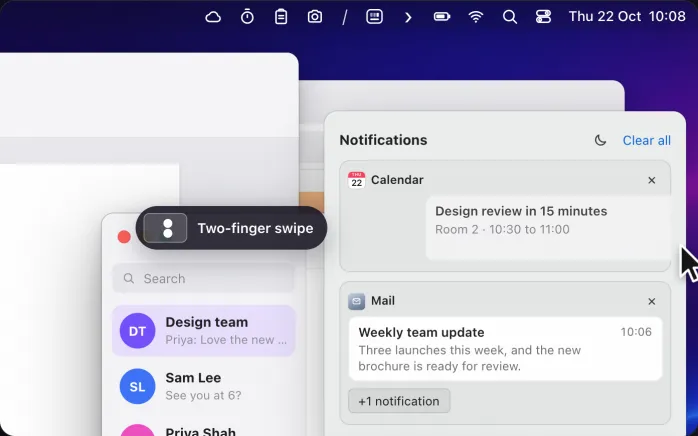
| Notifications go to Notification Center, behind the date in the menu bar. | They wait above the clock’s calendar, with a count of new ones. Swipe one away or click its ✕. |
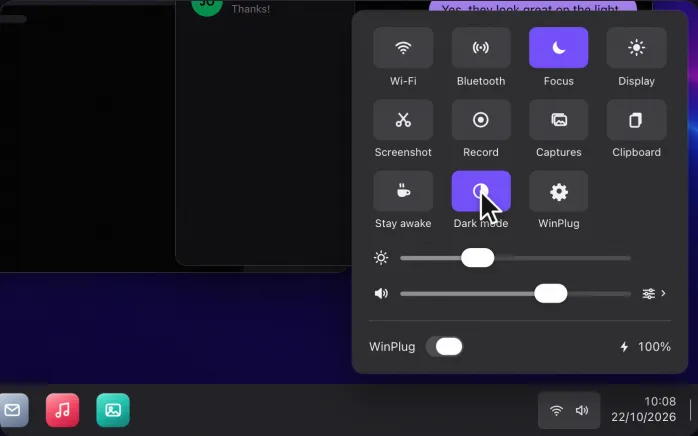
| Sound and brightness hide in Control Center at the top of the screen. | Click the tray for quick settings: one click mutes, turns the brightness down or the keyboard light off. |
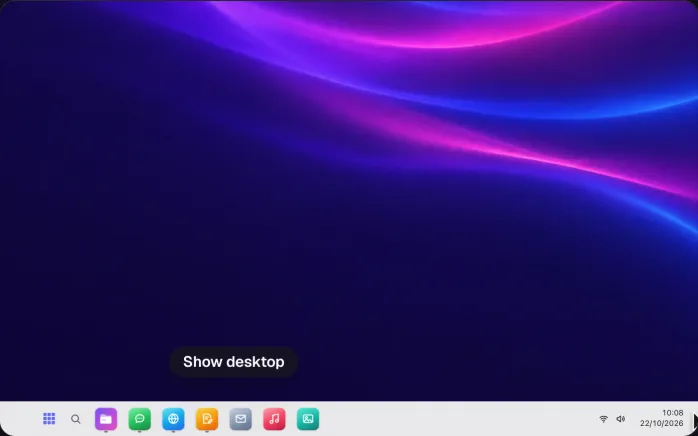
| No button to show the desktop, only a gesture or a shortcut. | Click the corner at the right end of the bar. Click again and your windows come back. |
| The menu bar always takes the top of the screen. | Hide it like on Windows: it comes back at the top, and filled windows stop above the taskbar. |
| Hide the Dock and its badges go with it. | Icons glow orange and show a red badge when an app needs you. |
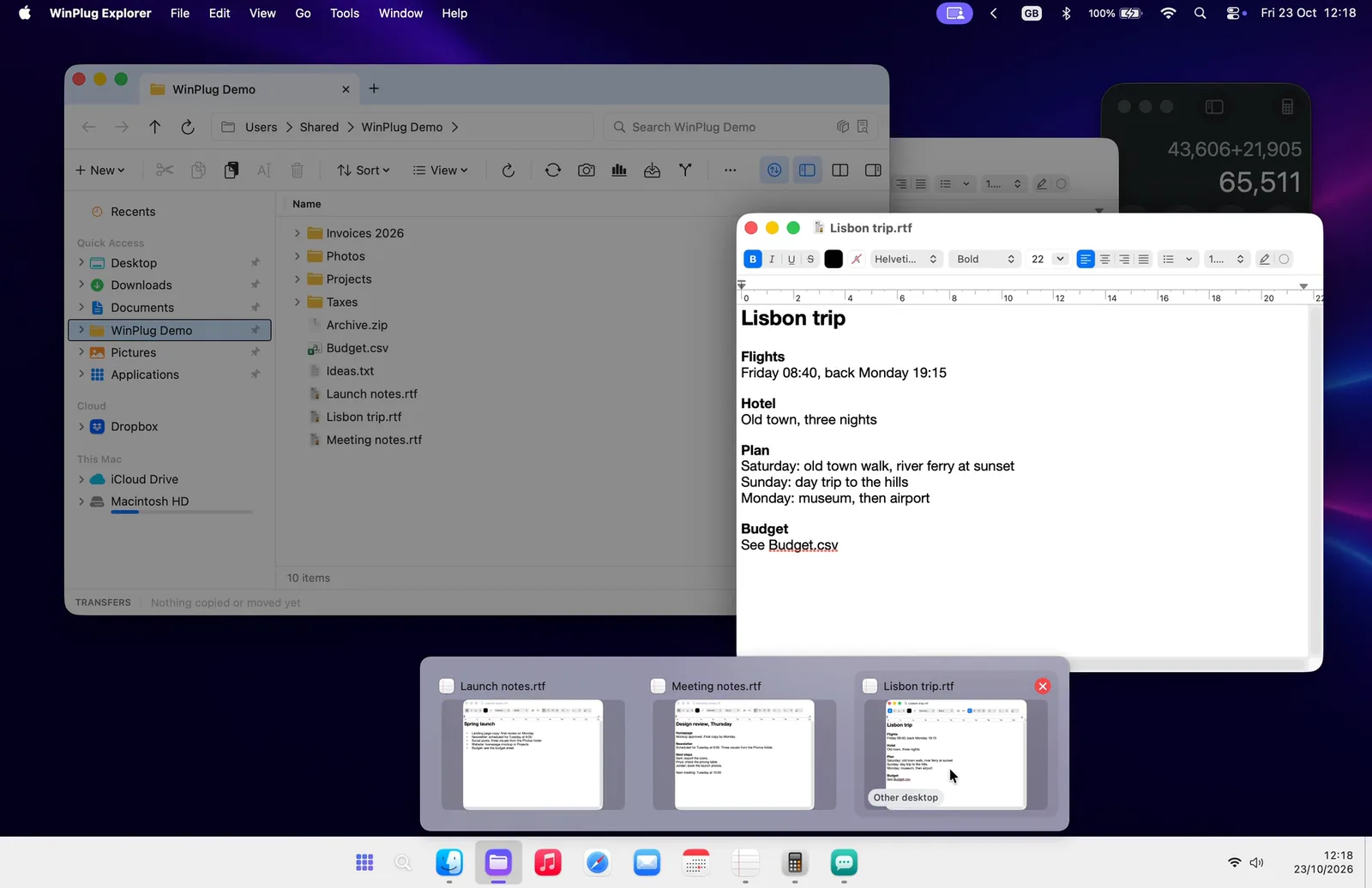
| Windows on your other desktops stay out of sight. | Previews show them too, marked Other desktop, one click away. |
Open and minimize windows with one click
On a Mac, you minimize a window with its yellow button or Command-M, and Option-Command-M minimizes every window of the app in front.
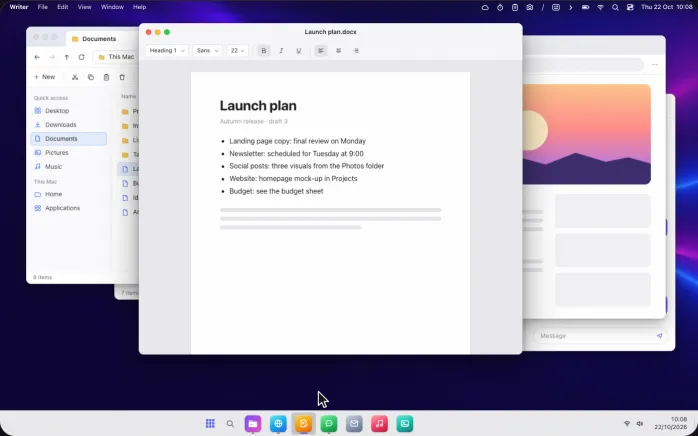
WinPlug’s taskbar does it the Windows way: click an app to bring up its window, and click it again while it’s in front to tuck it back into the bar.
A line under each icon shows which apps have a window, in color for the one in front.
Switch apps in one click, or with Win + a number
Every app keeps its place on the bar, and one click brings it to the front.
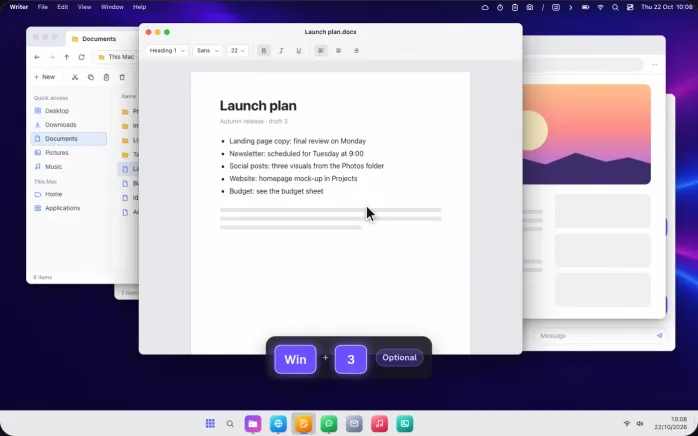
As an option, Win + a number jumps straight to the app at that place, the way it does on Windows.
On a Mac keyboard, Win is the Command key.
Pin apps to the taskbar and arrange the icons
To keep an app in the Dock, you right-click it and choose Options, then Keep in Dock.
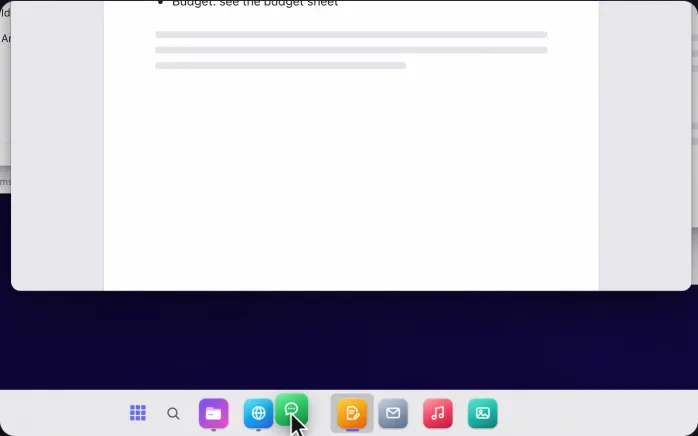
On WinPlug’s taskbar, right-click an icon to pin it, or drop an app on the bar.
Drag any icon to a new spot: the others make room, and it stays where you put it.
See all open windows on your Mac, with previews and Peek
On a Mac, Mission Control (Control-Up Arrow) spreads out every open window.
With WinPlug, hover an app on the taskbar to see a preview of each of its windows.
Glide over a preview to Peek at that window full size, or close it from there.
Multiple desktops on your Mac, one taskbar
macOS calls extra desktops Spaces: you add them from Mission Control and swipe between them.
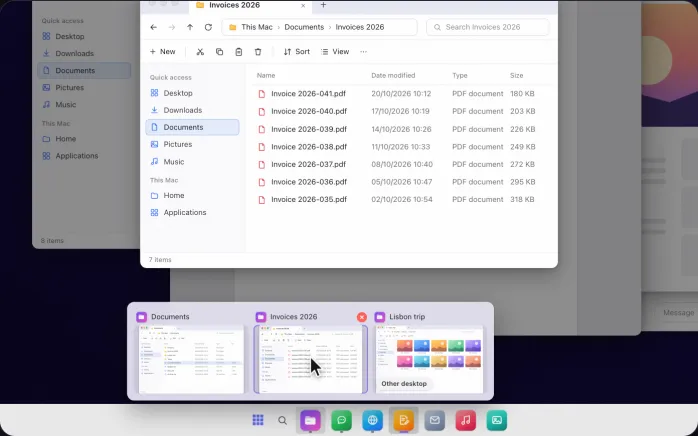
WinPlug’s previews also list the windows on your other desktops, marked Other desktop.
Click one and your Mac takes you straight there.
Notification badges you won’t miss
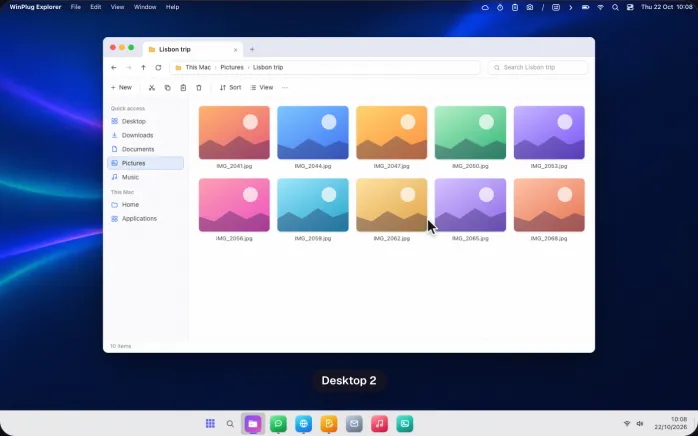
Hide the Dock and its red badges disappear with it.
WinPlug keeps them on the taskbar: when an app needs you, its icon glows orange and a red badge counts what’s new.
The glow stays steady, without blinking.
A Start menu for your Mac: apps, files and sums
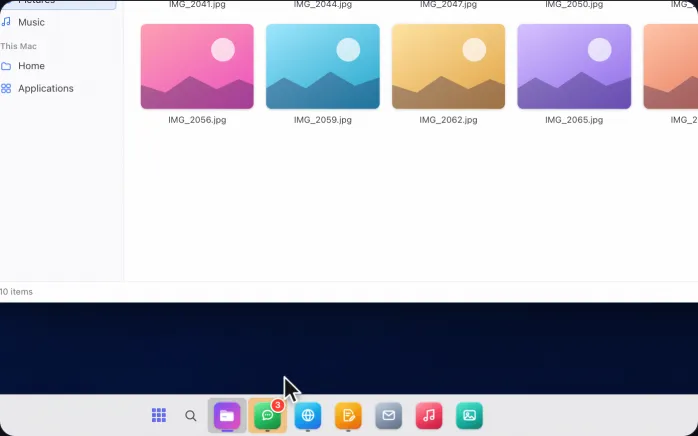
A Mac has no Start menu, and in macOS Tahoe (26) Launchpad is gone too: apps now open from the Apps view in Spotlight.
WinPlug adds a Start menu: click Start or press Ctrl+Esc, then type to find apps, files and System Settings pages, or type a sum to see the answer.
Your pinned apps, recommended files and a power menu are right there.
A calendar under the clock, plus your latest screenshots
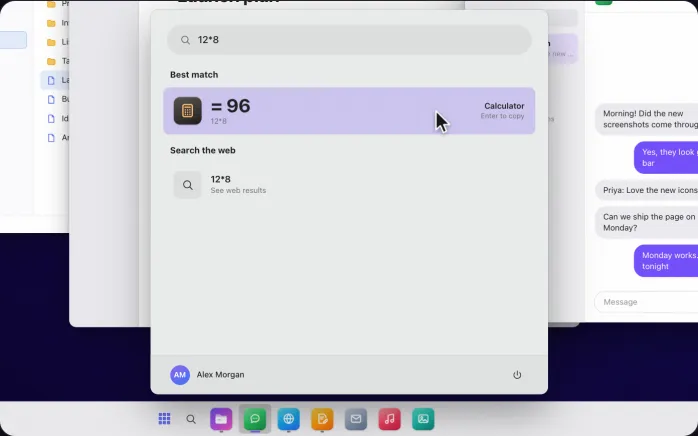
On a Mac, clicking the clock in the menu bar opens Notification Center, not a calendar.
Click the clock on WinPlug’s taskbar for this month’s calendar, with your six latest WinPlug screenshots above it.
Hover one to see it big.
A notification center on your Mac, like Windows
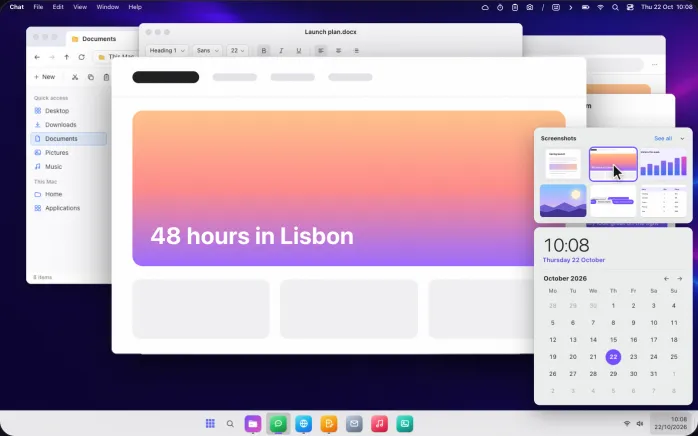
On a Mac, notifications slide in at the top right, then wait in Notification Center.
WinPlug keeps them above the calendar of its taskbar, grouped by app, with a count next to the clock.
Swipe one away with two fingers or click its ✕, or clear them all at once.
They stay on your Mac.
Quick settings on your Mac: mute and brightness in one click
On a Mac, sound and brightness live in Control Center at the top of the screen.
On WinPlug’s taskbar, click the Wi-Fi and volume icons for quick settings like on Windows: volume and brightness sliders, and tiles for a screenshot or your clipboard history.
Wi-Fi networks, Bluetooth devices, Focus and display settings open right in the panel, and dark mode is one click away.
Show the desktop on your Mac in one click
On a Mac, you show the desktop by spreading your thumb and three fingers on the trackpad, or with a keyboard shortcut.
On Windows, you click the far right end of the taskbar, and WinPlug brings that back: click the corner at the right end of the full-width bar and every window steps aside.
Click it again and they all come back where they were.
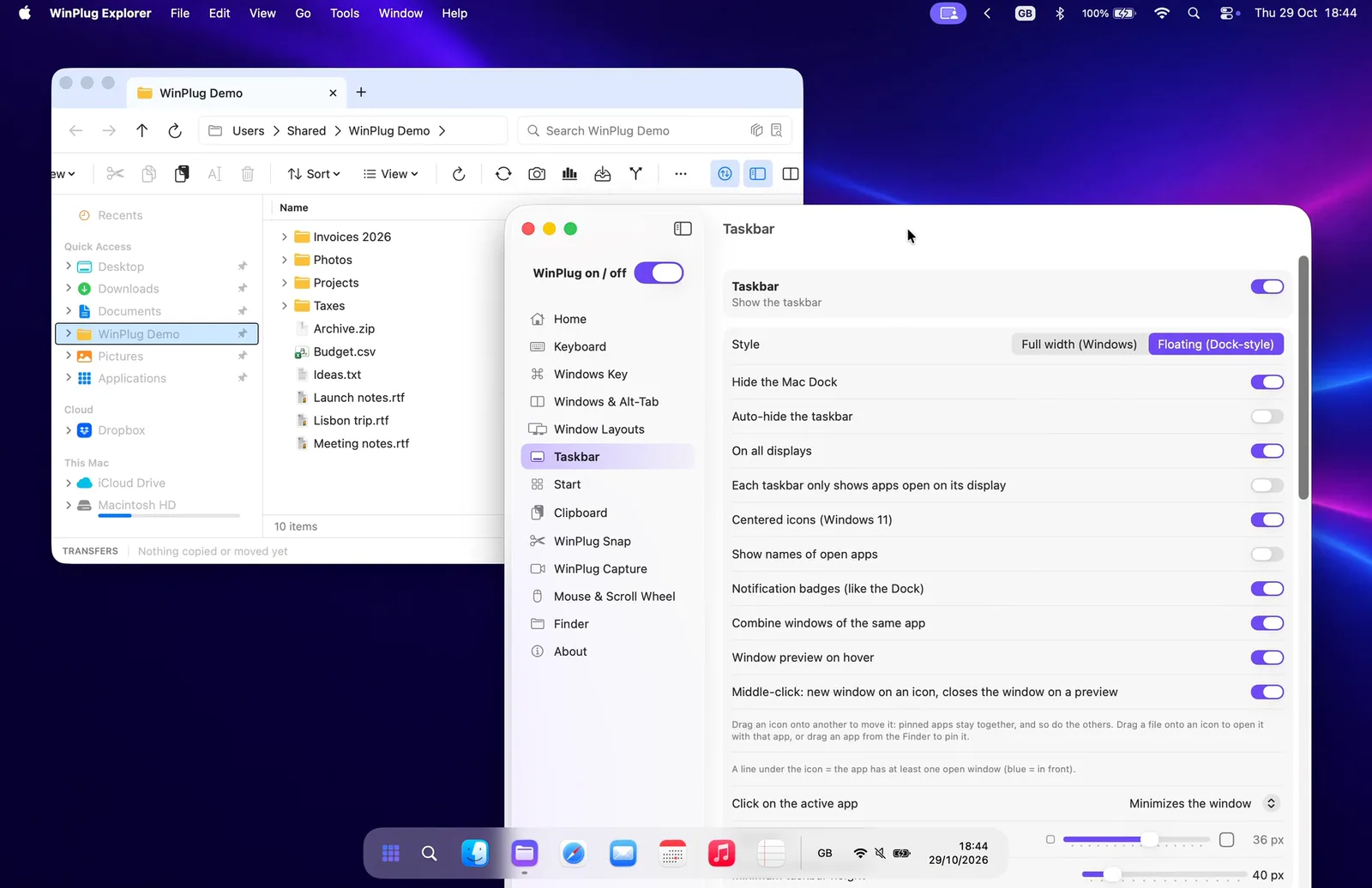
Full width or floating: a Dock replacement your way
WinPlug’s taskbar takes the Dock’s place in the style you like: full width like on Windows, or floating like the Dock.
Love your Mac’s look?
On macOS Tahoe, Mac glass is the same Liquid Glass as the Dock.
Or pick a theme, Night, Ocean, Purple, Sunset or Forest, or a color or gradient of your own.
Hide the menu bar on your Mac, like on Windows
To hide the menu bar on a Mac, you go to System Settings › Menu Bar.
WinPlug can do it for you, as an option, so your screen has only the taskbar, like Windows.
The menu bar comes down when you touch the top of the screen, and a full-screen window keeps its bottom above the taskbar.

Auto-hide the taskbar until you need it
To hide the Dock on a Mac, turn on “Automatically hide and show the Dock” in System Settings › Desktop & Dock.
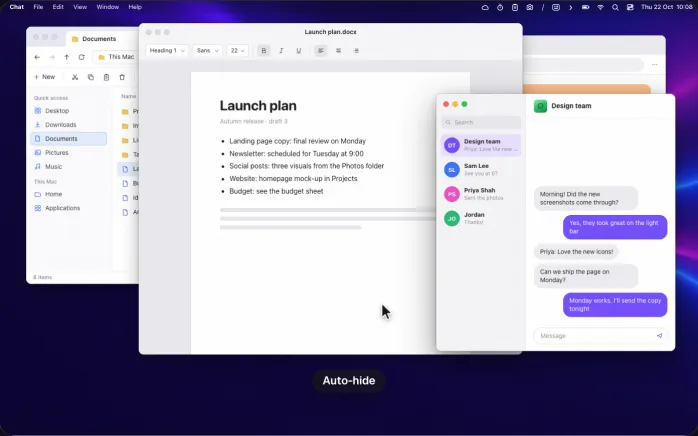
With WinPlug, the Dock stays hidden, and the taskbar can hide too: it slides away and comes back when you touch the bottom of the screen.
It also steps aside for full-screen videos and apps.
Hide menu bar icons behind one arrow
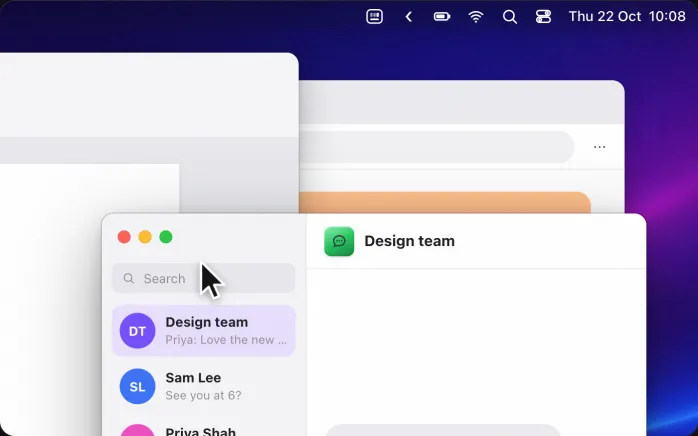
The icons at the top right of your Mac pile up with every app you add.
WinPlug can tuck them behind one arrow: click it to bring them back, click again to tidy up.
It stays off until you switch it on.
Jump lists: recent files on right-click
On Windows, right-clicking a taskbar icon opens a jump list of recent files.
WinPlug brings it to your Mac: right-click an app to see its recent and pinned files, click one to reopen it, or pin it to keep it at the top.
Files come from your Documents, Desktop, Downloads, iCloud Drive and cloud folders like Dropbox, OneDrive and Google Drive, and nothing leaves your Mac.

And also…
Middle-click
Middle-click an icon for a new window, or a preview to close that window, on any desktop.
Drop a file on an icon
The file opens with that app. Drop an app on the bar to pin it.
One button per window
Turn on titles for a button per window. When the bar fills up, titles shorten, then group by app.
One bar per display
Each display can have its own bar, with only the apps open on it.
Themes and colors
Glass, a color or a gradient, plus five themes to pick from.
About 0.5% of the processor
A native app that reacts to window events instead of checking all the time.
No Screen Recording needed
Previews work without that permission: you get each window’s icon and title instead of a live picture.
Keep your Mac awake with the lid closed
Close the lid and your Mac keeps going: downloads, music, an external display. On battery, it sleeps again at the level you pick.
Windows taskbar shortcuts on your Mac
- Click
- Open an app, or minimize the one in front
- Middle-click
- Open a new window, or close one from its preview
- Hover
- Preview each window of the app
- Right-click
- Recent and pinned files, and the app’s menu
- Two-finger swipe
- Clear a notification to the right
- Click the speaker
- Mute, or bring the sound back, in quick settings
- Click the corner
- Show the desktop, or bring your windows back
- CtrlEsc
- Open the Start menu
- Win1…9
- Open the app at that place on the barOptional
Win is the Command key on a Mac keyboard. Win + a number is an option you switch on in WinPlug’s settings.
See it on a real Mac
No mock-up: WinPlug Taskbar filmed on a real MacBook. Click a feature in the list to jump straight to it.
- Arrange your icons: Drag an icon to a new spot: the others make room, and it stays there.
- Previews and Peek: Hover an icon for its windows. Glide over one to Peek at it full size.
- Badges you won’t miss: When an app needs you, its icon glows and a red badge counts what’s new.
- Clock and captures: Click the clock for your calendar, with your latest captures on top.
- Notification center: Notifications wait above the calendar. Swipe one away, or click its ✕.
- Quick settings: Click the tray for quick settings: one click mutes, one dims the screen.
- Show the desktop: Click the corner at the end of the bar and every window steps aside.
- 2 styles: Full width like Windows, or floating like a Mac: right-click to switch.
- Hide the menu bar: Hide the Mac’s menu bar: it comes back when you touch the top.
Features in the video
Mac taskbar questions
Does a Mac have a taskbar?
No. The bar at the bottom of a Mac is the Dock: it shows apps, not windows, and has no Start menu. WinPlug adds a real taskbar on your Mac, with your pinned and open apps, a preview of each window, a Start menu and a clock with a calendar.
Can I get a Windows-style taskbar on my Mac?
Yes. WinPlug puts one at the bottom of each screen, on macOS 14 Sonoma or later: full width like on Windows, or floating like the Dock. It comes with WinPlug: $24 one-time at launch, with a free 14-day trial.
How do I see all open windows on a Mac?
On a Mac, Mission Control (Control-Up Arrow) spreads out every window. With WinPlug, hover an app on the taskbar to see each of its windows, including those on your other desktops, then click the one you want.
How do I hide the Dock or the taskbar on a Mac?
To hide the Dock, turn on “Automatically hide and show the Dock” in System Settings › Desktop & Dock, or press Option-Command-D. With WinPlug, the Dock stays hidden while the taskbar is on, and the taskbar can auto-hide too: it comes back when you touch the bottom of the screen.
Is there a Start menu on a Mac?
Not built in: you open apps from the Dock or Spotlight, and in macOS Tahoe (26) Launchpad is gone. WinPlug adds a Start menu: click Start or press Ctrl+Esc, then type to find apps, files and settings, or type a sum to get the answer.
How do I show the desktop or minimize all windows on a Mac?
On a Mac, Option-Command-M minimizes every window of the app in front, and spreading your thumb and three fingers on the trackpad shows the desktop. With WinPlug, click an app on the taskbar to minimize it, or click the corner at the right end of the bar to show the desktop.
How do I hide menu bar icons on a Mac?
macOS lets you hide some of its own icons in System Settings. For the rest, WinPlug tucks the icons at the top right of the screen behind one arrow: click the arrow to show them, click again to tidy up. Switch it on in WinPlug’s settings.
How do I pin an app to the taskbar on a Mac?
Right-click the app’s icon on WinPlug’s taskbar and pin it, or drop the app on the bar. Then drag the icon where you want it: the other icons make room. On the Dock, the same thing is Options › Keep in Dock.
One license, every habit
WinPlug Taskbar comes with 8 more modules: one license, $24 one-time at launch, for 2 Macs, with a free 14-day trial and no account.
- WinPlug SnapCapture an area, a window or the whole screen, and mark it up.
- WinPlug KeyboardYour Windows shortcuts as they were: Ctrl+C, Ctrl+V, Alt+F4, Home and End.
- WinPlug SwitchAlt-Tab window by window, with thumbnails, search and keys to close or minimize.
- WinPlug ExplorerA file explorer with tabs, dual pane and the views you know.
- WinPlug CaptureRecord the screen, a window or an area, then cut, style and export it in an editor.
- WinPlug ClipboardEverything you copy, kept in a history you can paste from.
- WinPlug LayoutSnap windows to halves and quarters by dragging them to an edge, or from the keyboard.
- WinPlug MouseThe wheel scrolls like Windows, the trackpad stays natural, Ctrl + wheel zooms.