WinPlug
Try WinPlug free

Modules

Try WinPlug free

Switching from Windows to Mac? Keep your habits

The taskbar, Alt-Tab, snipping tool, shortcuts and more features you miss from Windows, on your Mac.

No card, no account$24 one-timemacOS 14 or later

WinPlug Taskbar, a Mac taskbar like Windows: hovering an app shows each of its windows, then Peek on one

On a Mac, windows hide behind one icon.With WinPlug, hover an icon to see each window.Explore the Mac taskbar like Windows

On a Mac, there’s no Win + ⇧ + S to snip.With WinPlug, Win + ⇧ + S snips like on Windows.Explore the snipping tool for Mac

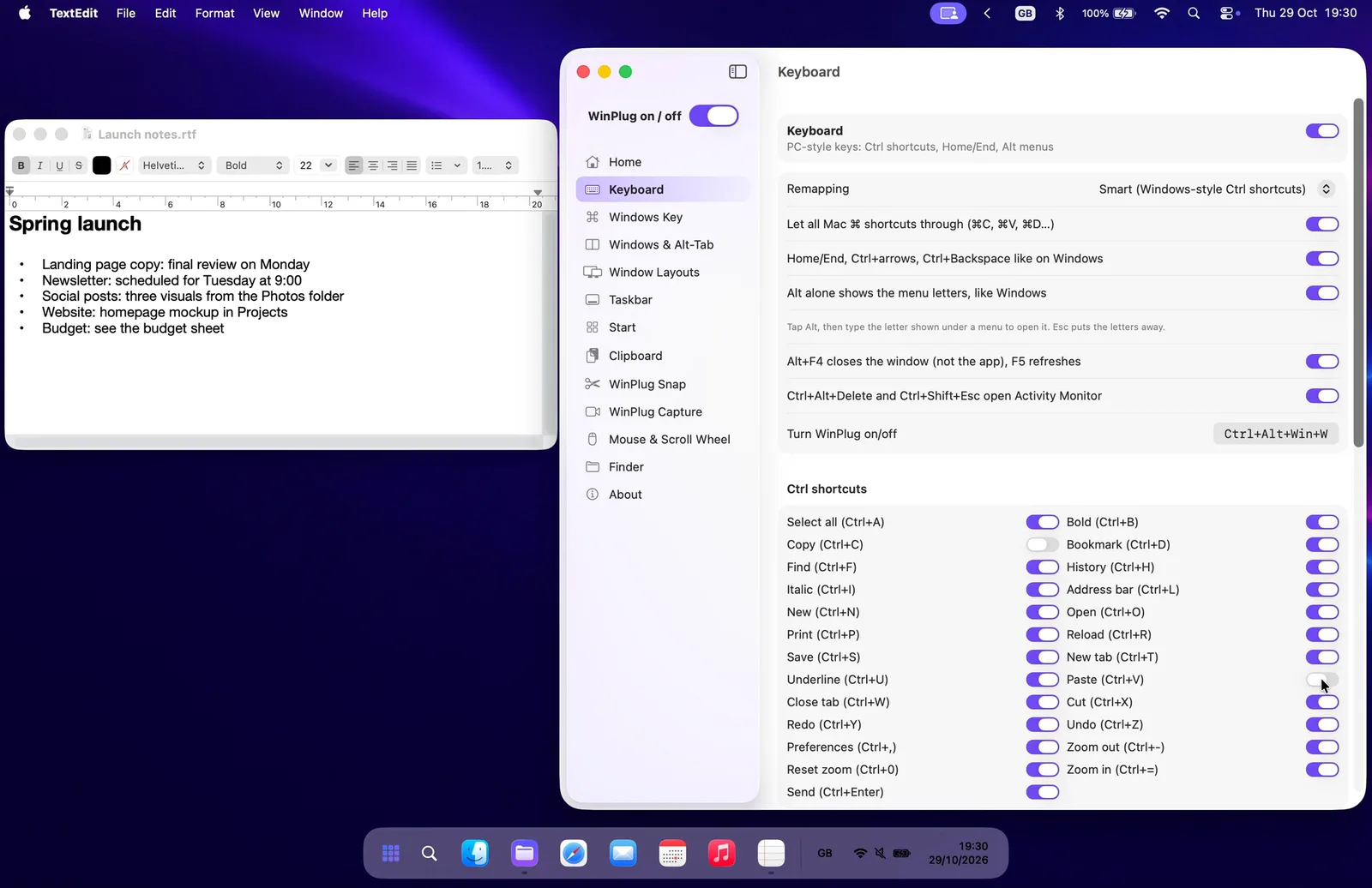
On a Mac, your Windows shortcuts don’t work, not even Ctrl + C.With WinPlug, they do: Ctrl + C, Ctrl + V and 23 more Ctrl shortcuts.Explore the Windows keyboard on Mac

On a Mac, ⌘ + Tab switches apps, not windows.With WinPlug, every window gets its own card.Explore Alt-Tab on Mac

On a Mac, you can’t cut and paste a file.With WinPlug, ⌘ + X and ⌘ + V just work.Explore the file explorer for Mac

On a Mac, there’s no Win + Alt + R to record.With WinPlug, Win + Alt + R records an area.Explore the screen recorder for Mac

On a Mac, ⌘ V only pastes your last copy.With WinPlug, Ctrl + Alt + V shows the rest.Explore clipboard history for Mac

On a Mac, Win + arrows don’t snap windows.With WinPlug, Win + arrows snap like on Windows.Explore window snapping for Mac

On a Mac, the mouse scrolls the wrong way.With WinPlug, the wheel scrolls like Windows.Explore the Windows mouse on Mac

One license, all included

9 modules. Every Windows habit.

WinPlug doesn't turn your Mac into Windows. It adds the best ideas from Windows, and you switch on only the ones you want.

I moved from Windows to a Mac and my fingers kept pressing Ctrl. So I built the tools I was missing, one habit at a time. WinPlug is all of them in one app.

Mael, maker of WinPlug
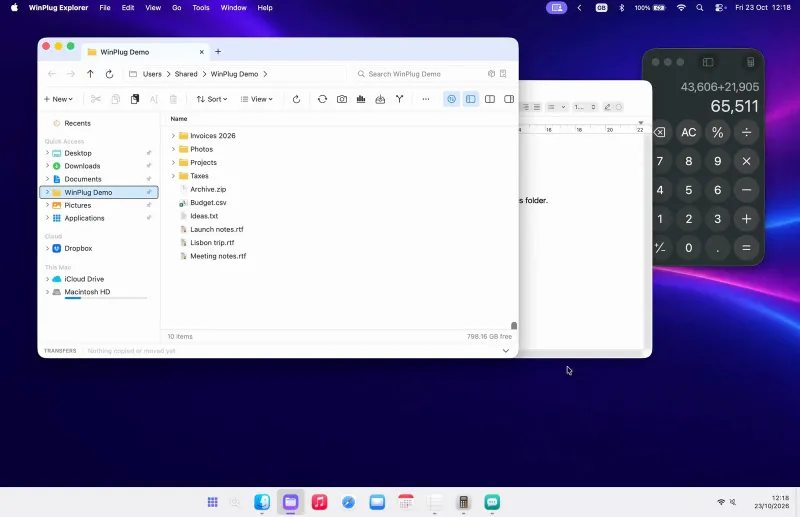
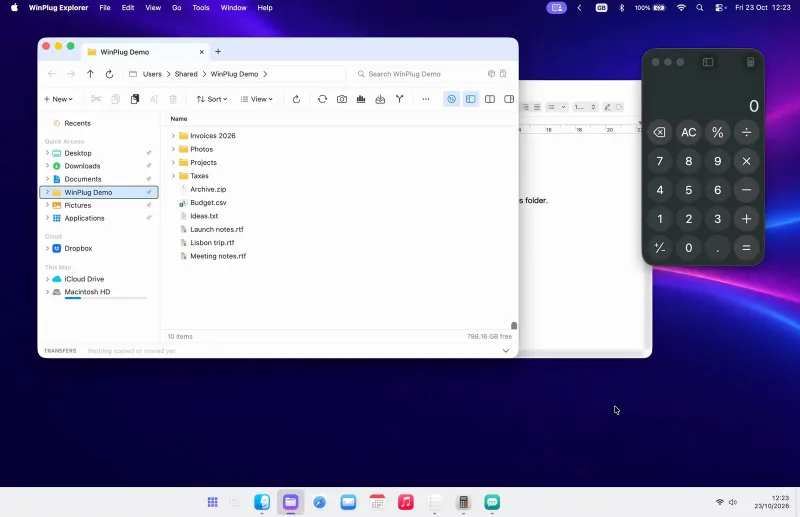
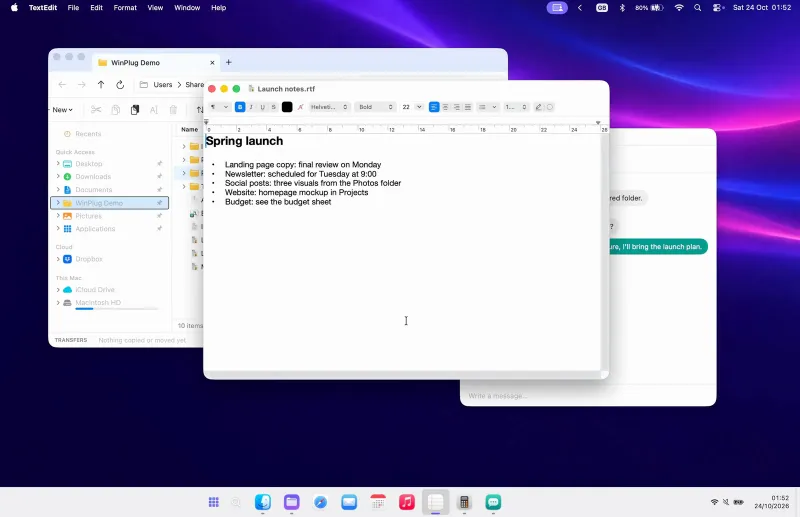
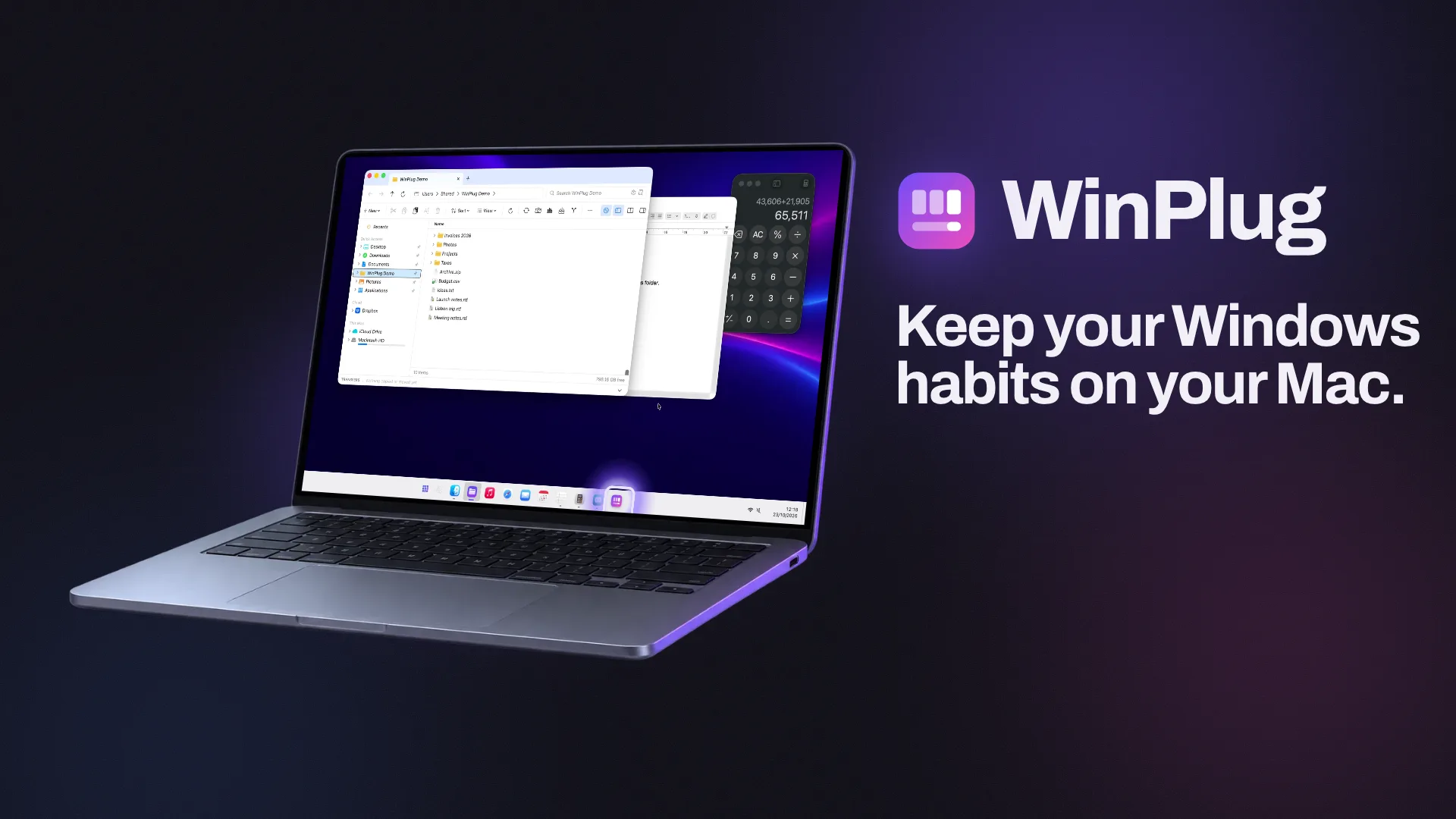
A Mac running WinPlug, with WinPlug Explorer open above a Windows-style taskbar. WinPlug: keep your Windows habits on your Mac.
Read the film
  1. 0:00Typed on a dark screen: "Switched from Windows to Mac?", then "Your fingers didn't."
  2. 0:03"On a Mac", three Windows reflexes fail, each with a red cross: Alt + Tab, "Shows apps, not windows."; Ctrl + X, "Can't cut files."; Win + Left Arrow, "Nothing snaps."
  3. 0:08A laptop shows a Mac desktop. The Dock makes room and the WinPlug app icon drops into it with a bounce. A violet wave spreads from the icon and turns the screen into WinPlug: a taskbar at the bottom, WinPlug Explorer open. "WinPlug. Keep your Windows habits on your Mac."
  4. 0:12WinPlug Taskbar, "Windows taskbar on your Mac": pointing at the taskbar shows previews of the app's windows.
  5. 0:16WinPlug Switch, "Alt-Tab, window by window": Alt + Tab shows every open window.
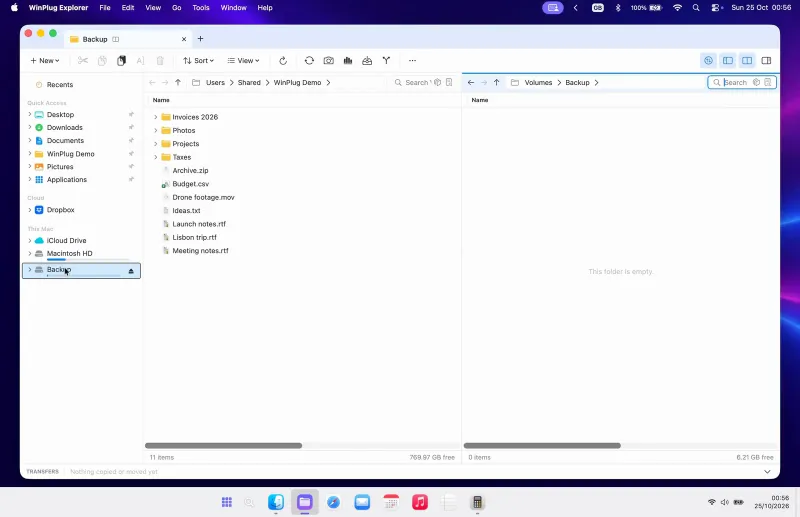
  6. 0:20WinPlug Explorer, "Windows file explorer on your Mac": Ctrl + X, then Ctrl + V, moves a file into another folder, in two side-by-side panes.
  7. 0:24WinPlug Layout, "Window snapping on your Mac": a window dragged to the side of the screen snaps into place; a violet frame shows where it will go.
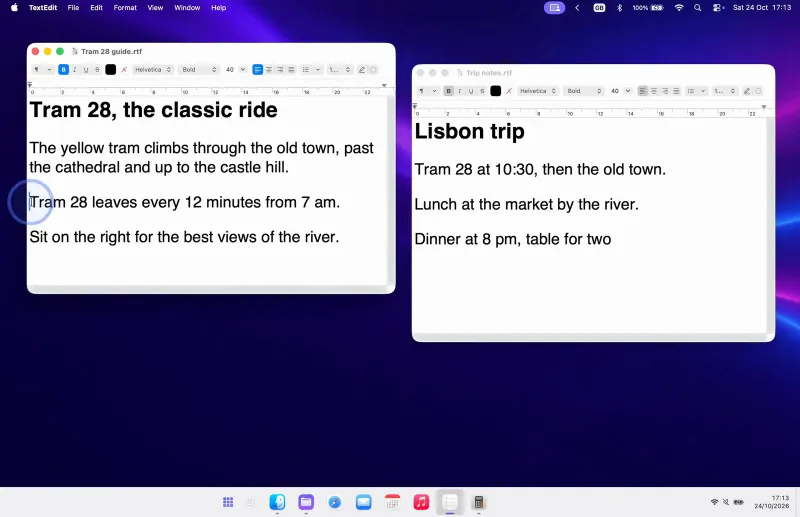
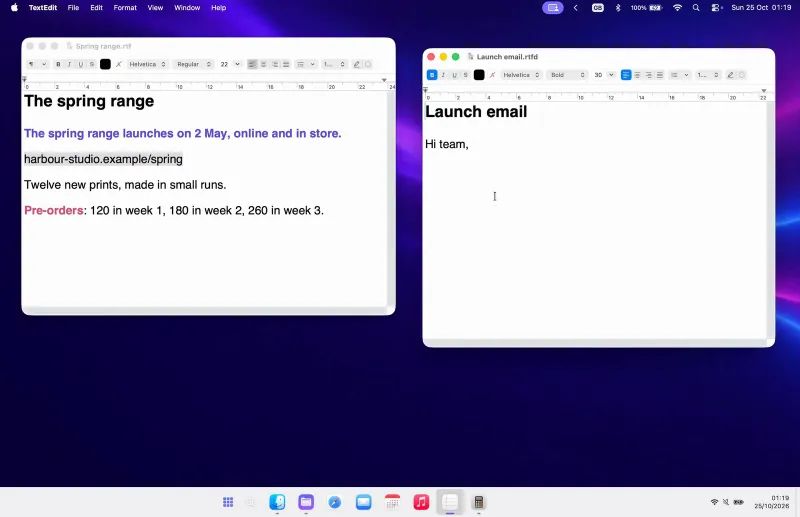
  8. 0:29WinPlug Keyboard, "Windows shortcuts on your Mac": Ctrl + C, then Ctrl + V, copies a line from one note into another.
  9. 0:33WinPlug Clipboard, "Clipboard history on your Mac": Ctrl + Alt + V opens the list of recent copies, to paste an older one.
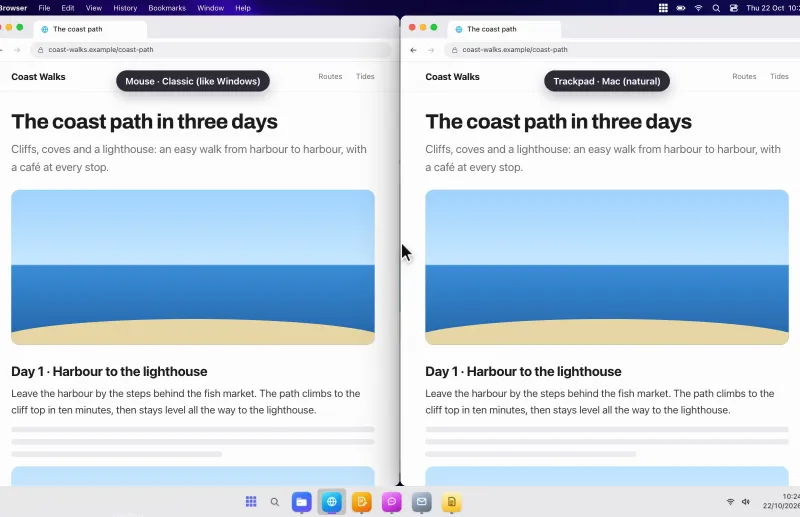
  10. 0:38WinPlug Mouse, "Change scroll direction on your Mac": two pages scroll side by side, with the mouse the classic Windows way, with the trackpad its own way.
  11. 0:42On a violet card, typed: "Relearn everything?" It is struck through, and the answer drops in: "No need."
  12. 0:44WinPlug Snap, "Screen snipping on your Mac": Win + Shift + S, and an area of the screen is snipped.
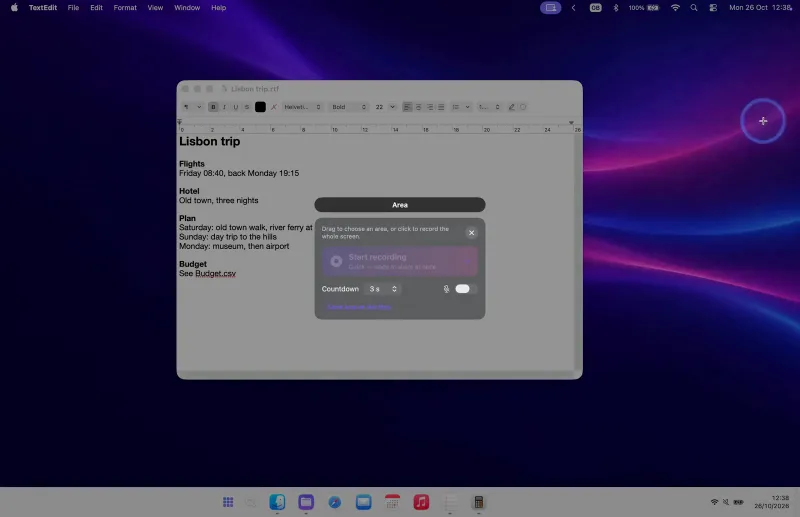
  13. 0:49WinPlug Capture, "Screen recording on your Mac": Win + Alt + R starts a recording after a countdown.
  14. 0:53"9 modules. 1 license." The 9 modules, side by side, fly into the WinPlug icon, which tilts and drops back into place.
  15. 0:56The icon's windows light up one by one, like Alt + Tab. "WinPlug. Your Windows habits, plugged into your Mac." A pointer clicks "Try WinPlug free". winplug.app
WinPlug Taskbar

Windows taskbar on your Mac

Every window one click away, live previews on hover, a Start menu that finds and calculates, and a clock that keeps your latest captures. Full width or floating, your choice.

Open and minimize. Click an icon and its window opens. Click it again and it tucks back into the bar.
Switch apps. One click brings any app to the front. As an option, Win + a number jumps straight to it.
Arrange your icons. Drag an icon to a new spot. The others make room, and it stays where you drop it.
Previews and Peek. Hover an icon to see all its windows. Glide over one to Peek at it full size, or close it from there.
Other desktops. Windows on your other desktops show up too. Click one and you’re there.
Badges you won’t miss. When an app needs you, its icon glows orange and a red badge counts what’s new.
A Start menu that answers. Type to find apps, files and settings. Type a sum and the answer is already there.
Clock and captures. Click the clock for your calendar, with your latest captures on top. Hover one to see it big.
Notification center. Notifications wait above the calendar, with a count by the clock. Swipe one away to the right, or click its ✕.
Quick settings. Click the tray for quick settings. Mute, dim the screen, turn on Do Not Disturb or dark mode in one click.
Show the desktop. Click the corner at the right end of the bar and every window steps aside. Click again and they’re back.
2 styles. Full width like Windows, or floating like a Mac. Pick one of 5 themes, or keep the Mac’s glass look.
Hide the menu bar. As an option, hide the Mac’s menu bar: it comes back when you touch the top. A filled window stops above the taskbar.
Auto-hide. Let the bar slide away until you need it. Touch the bottom of the screen and it’s back.
A tidy menu bar. Tuck the icons at the top of the screen behind one arrow. Click it again to bring them back.
Jump lists. Right-click an icon for its recent and pinned files. One click opens the one you need.

Press Enter to see this feature in detail on its page.

  • On a Mac, the Dock shows your apps, not your windows. With WinPlug, every window gets its own button.
  • On a Mac, clicking an app won’t minimize it. With WinPlug, click again to minimize it.
  • On a Mac, windows hide behind one icon. With WinPlug, hover an icon to see each window.
  • On a Mac, there’s no Start menu. With WinPlug, a Start menu finds apps and files.
  • On a Mac, a hidden Dock hides its badges. With WinPlug, icons glow when an app needs you.
  • On a Mac, notifications hide behind the date. With WinPlug, a swipe clears a notification.
  • On a Mac, sound and brightness hide up top. With WinPlug, mute or dim from the taskbar.
  • On a Mac, there’s no show-desktop button. With WinPlug, one click shows the desktop.

Explore the Mac taskbar like Windows
WinPlug Snap

Screen snipping on your Mac

Press Win + ⇧ + S, draw a frame, and the capture is copied. Point at it with arrows, numbers and shapes, blur what’s private, read its text, pin it above your apps, or capture just one window.

Win + ⇧ + S. The screen freezes and dims. Draw a frame, its size shows as you go, and the capture is copied.
Your latest captures. Click the clock: your latest captures sit above the calendar. Hover one to see it big.
Arrows, steps, blur. Open it in the editor. Point with an arrow, number the steps 1, 2, 3, and blur what’s private.
Shapes. Click Shapes for lines, arrows, callouts, stars and check marks. Drag a yellow handle to reshape it, the round one to turn it.
Text that wraps. Type a note: the box wraps as you write. Select a word to make it bold, bigger or red.
Read the text. Read text finds every word in the capture. Copy it in one click, or show it as a QR code.
Ready to share. From the Image menu, add a border, a white margin with a shadow, or a coloured background.
Pin it on top. Pin a capture and it floats above every app. Drag it, scroll to resize, make it see-through.
One window. ⌥ + Print Screen: each window lights up under the cursor. Click one to capture just that window.

Press Enter to see this feature in detail on its page.

  • On a Mac, there’s no Win + ⇧ + S to snip. With WinPlug, Win + ⇧ + S snips like on Windows.
  • On a Mac, a capture can’t float above apps. With WinPlug, pin it and it stays on top.
  • On a Mac, nothing blurs a private detail. With WinPlug, blur an e-mail in one stroke.
  • On a Mac, old captures pile up on the desktop. With WinPlug, the clock shows your latest ones.
  • On a Mac, a capture can’t get a background. With WinPlug, one click adds a background.
Explore the snipping tool for Mac
WinPlug Keyboard

Windows shortcuts on your Mac

Ctrl + C, Ctrl + V, Alt + F4, Home and End do what your fingers expect, on a Windows keyboard or a Mac one, in QWERTY or AZERTY. Terminals and code editors keep their own Ctrl, and one shortcut turns it all off.

Ctrl + C, Ctrl + V. Select, press Ctrl + C, then Ctrl + V where you want it. Your Mac gets ⌘ C and ⌘ V, so it works everywhere.
Any keyboard layout. Shortcuts follow the letter you type, not where the key sits: AZERTY, QWERTY or another layout, they just work.
Alt opens the menus. Tap Alt: a letter shows under each menu. Type it to open that menu, then use the arrows and Enter.
Alt + F4. Alt + F4 closes the window in front, never the whole app: your other windows stay open.
Home, End, Ctrl + arrows. Home and End go to the ends of the line, Ctrl + arrows jump word by word, Shift selects and Ctrl + Backspace deletes a word.
Ctrl + Z, Ctrl + Y. Ctrl + Z undoes, Ctrl + Y redoes, as on Windows. On a Mac, redo is ⇧ ⌘ Z: WinPlug sends it for you.
Ctrl + Alt + Del. Ctrl + Alt + Del opens Activity Monitor, the Mac’s task list: see what’s running and quit an app that’s stuck.
Ctrl stays Ctrl in terminals. In terminals, code editors and virtual machines, Ctrl keeps its own job: Ctrl + C copies in your notes, but stops a command here.
One switch for WinPlug. Ctrl + Alt + Win + W turns WinPlug off: your Mac is exactly as it was. Press it again to bring everything back.

Press Enter to see this feature in detail on its page.

  • On a Mac, Ctrl + C doesn’t copy. With WinPlug, Ctrl + C copies, like on Windows.
  • On a Mac, Alt + F4 doesn’t close a window. With WinPlug, Alt + F4 closes the window.
  • On a Mac, Home doesn’t go to the line start. With WinPlug, Home and End work on the line.
  • On a Mac, Ctrl + Y doesn’t redo. With WinPlug, Ctrl + Y redoes, Ctrl + Z undoes.
  • On a Mac, tapping Alt opens no menu. With WinPlug, Alt shows a letter for each menu.
  • On a Mac, Ctrl + Alt + Del does nothing. With WinPlug, it opens Activity Monitor.
Explore the Windows keyboard on Mac
WinPlug Switch

Alt-Tab, window by window

Hold ⌥ and Tab through every open window, with live thumbnails. Peek at one full size, type a few letters to find it, close or quit without leaving the keyboard.

Window by window. Hold ⌥ and tap Tab to walk through every open window. Let go and the one you picked comes to the front.
Quick tap, straight back. A quick ⌥ + Tab takes you back to the window you just left. No panel, no wait.
Peek. Glide over the cards and each window shows full size, right where it sits on your screen.
Arrow keys. The arrows move card by card, and ↑ ↓ jump a whole row.
Type to find. Press S and type a few letters: only the matching windows stay. Enter opens the one you want.
Close, minimize, quit. W closes the window, M minimizes it and Q quits the app, without leaving the keyboard.
Nothing left out. Minimized windows and hidden apps are in the grid too. Pick one and it’s back.
⌘ + Tab, every window. ⌘ + Tab shows the same grid of windows, not just a row of apps.
Other desktops. As an option, windows on your other desktops join the grid. Pick one and you’re there.
No screen recording. Without the Screen Recording permission, cards show icons and titles. Nothing on your screen is captured.
Send to a desktop. ⌘ + Ctrl + ⇧ + → sends the window you’re in to the next desktop, and you go with it. ← brings it back.
Same app, next window. Tap ⌘ + Tab twice, quickly, and you reach the next window of the same app.

Press Enter to see this feature in detail on its page.

  • On a Mac, ⌘ + Tab switches apps, not windows. With WinPlug, every window gets its own card.
  • On a Mac, you can’t jump back to that window. With WinPlug, one quick tap takes you back.
  • On a Mac, minimized windows stay in the Dock. With WinPlug, minimized windows are in the grid.
  • On a Mac, you can’t type to find a window. With WinPlug, type a few letters to find it.
  • On a Mac, ⌘ + Tab can’t close a window. With WinPlug, W closes it, M minimizes it.
Explore Alt-Tab on Mac
WinPlug Explorer

The file explorer you know by heart

Tabs, an address bar you can type in, folder sizes, 2 panes, real cut and paste, and ZIPs that open like folders.

ZIPs open like folders. Double-click a ZIP and you’re inside, no unzipping. Space previews a photo, and you can drag one straight out.
Folders unfold in place. ⌫ takes you back. In Details view, folders unfold right in the list and their sizes fill in.
Rename, delete, undo. Click, pause, click to rename in place. Deleted it by mistake? ⌘ + Z brings it back.
2 panes, cut and paste. ⌘ + X, Tab to the other pane, ⌘ + V. The transfers bar shows the speed and the time left.
All 8 views. The layouts you know, from Extra large icons to Content, on ⌘ + ⇧ + 1 to 8. Then slide to any thumbnail size.
A real address bar. Click › for a folder’s subfolders, or paste a path and press Enter.
Your cloud, with its status. Dropbox, OneDrive, Google Drive or iCloud Drive sit in the tree with a Status column. Disk bars and Disk Usage show where the space went.
New, tags and Properties. Right-click › New for a blank document, named in place. Add a color tag, then ⌥ + Enter for its Properties.

Press Enter to see this feature in detail on its page.

  • On a Mac, you can’t cut and paste a file. With WinPlug, ⌘ + X and ⌘ + V just work.
  • On a Mac, a ZIP won’t open like a folder. With WinPlug, ZIP, RAR and 7z open like folders.
  • On a Mac, Enter renames a file. With WinPlug, Enter opens it, F2 renames it.
  • On a Mac, there’s no address bar to type in. With WinPlug, type or paste a path to go there.
  • On a Mac, folder sizes are hidden by default. With WinPlug, every folder shows its size.
  • On a Mac, there’s no two-pane view for files. With WinPlug, two folders sit side by side.
Explore the file explorer for Mac
WinPlug Capture

Screen recording on your Mac

A complete screen recorder: Win + Alt + R records the screen, a window or your camera, then a full editor adds zooms, captions and music.

Screen, window or area. Open the recorder: record the whole screen, one window, an area you drag, or the camera alone.
Quick: ready when you stop. Start, work, then Stop: the video file is ready at once, with a preview in the corner to open, copy or edit it.
Sound and camera. Pick Editor, then turn on your microphone, the Mac’s sound and your camera: a bubble you drag into any corner, its background blurred.
A teleprompter nobody sees. Turn on the prompter: your script scrolls under the camera while you record, at your speed, and never shows in the video.
Cut with S, speed up. Stop, and the editor opens by itself. S splits the clip at the playhead; right-click a clip for its speed, from 0.25× to 8×.
Zooms on your clicks. A zoom on each click follows the pointer, and the pointer gets bigger, with a ring on every click.
Camera scenes. Show your camera alone for the intro, side by side with the screen, or not at all, and blur or remove your background.
Text and title cards. Add a title, a name and role or a callout in 8 styles, animated, and full-screen cards that pause the video.
Automatic captions. Captions from your voice, made on your Mac: nothing is sent, and the spoken word lights up.
Keys on screen. Show the shortcuts you pressed, as you pressed them: Ctrl + S stays Ctrl + S, and what you type never shows.
Blur what’s private. Blur, pixelate or black out a part, or dim all around it: the mask stays on what it hides, even in a zoom.
Background and frame. A background in one click, a Mac window or laptop frame, and a colour look.
9:16 and export. Pick 9:16 for phones, then export an MP4 or MOV up to 4K, a GIF or the sound alone, to a file or the clipboard.

Press Enter to see this feature in detail on its page.

  • On a Mac, a screen recording comes out raw. With WinPlug, a full editor opens when you stop.
  • On a Mac, there’s no Win + Alt + R to record. With WinPlug, Win + Alt + R records an area.
  • On a Mac, your camera can’t join the recording. With WinPlug, your camera in a bubble, background blurred.
  • On a Mac, there’s nothing to read from as you talk. With WinPlug, a teleprompter nobody sees.
  • On a Mac, a recording has no captions. With WinPlug, captions made on your Mac.
  • On a Mac, a recording can’t zoom on your clicks. With WinPlug, a zoom on every click.
Explore the screen recorder for Mac
WinPlug Clipboard

Clipboard history on your Mac

Every copy is kept: text, links, images, screenshots, files. Ctrl + Alt + V opens them under your pointer to search, pin and paste in one click. It all stays on this Mac, encrypted.

Every copy, kept. Copy text, a link and an image as usual. Ctrl + Alt + V opens your history right under the pointer, newest first.
Paste with the keyboard. ↓ to pick a copy, Enter to paste it. The panel closes and the copy lands where you were typing, as plain text.
Or click a card. Click any card to paste it. What you paste moves back to the top, like on Windows.
Search your copies. Type a word in Search: the list filters as you type. Enter pastes the first match.
Pin what you reuse. Pin an address or a reply you paste often. Pinned cards stay on top, and Clear all keeps them.
Screenshots join in. Snip with Win + ⇧ + S: the capture waits in your history, ready to paste into a chat or a document.
Passwords stay out. Copies that password managers mark as secret are never saved. Your history stays on this Mac, encrypted.
Files too. Copy files in WinPlug Explorer: they show up by name, and paste as real files in another folder.

Press Enter to see this feature in detail on its page.

  • On a Mac, ⌘ V only pastes your last copy. With WinPlug, Ctrl + Alt + V shows the rest.
  • On a Mac, a new copy wipes out the last one. With WinPlug, your last 100 copies are kept.
  • On a Mac, a copy can’t be pinned for later. With WinPlug, pin it and it stays at the top.
  • On a Mac, pasting brings the old formatting. With WinPlug, history pastes plain text.
  • On a Mac, a screenshot replaces your text. With WinPlug, both wait in your history.
Explore clipboard history for Mac
WinPlug Layout

Window snapping on your Mac

Drag a window to an edge or a corner, or press Win + an arrow: it takes half, a quarter or the whole screen. Thirds, a second display, and every window back in place when you plug it in again.

Drag to an edge. Drag a window to the left or right edge: a violet outline shows where it lands, and it takes half the screen.
Corners and top. A corner gives a quarter of the screen. The top edge fills it.
Drag it back out. Pull a snapped window away from its place and it gets its size back.
Win + arrows. Win + ← or → takes half the screen, ↑ a quarter or all of it, ↓ brings the window back.
Fill the other half. After a half, the other half offers your open windows. Pick one and it fills the space.
Thirds. Ctrl + ⌥ + → gives the window a third of the screen, then two thirds, then its own size again.
Second display. Win + ⇧ + → sends the window to your other display, in the same place.
Windows remembered. Save your layout once with ⌃⌥⌘S. Unplug the display, plug it back in: every window goes back to its place.
Above the taskbar. Maximized windows stop right above the taskbar, so it’s never covered.
6 layouts, one hover. Hover the green button for six layouts. Pick a zone, then the window for the rest.

Press Enter to see this feature in detail on its page.

  • On a Mac, Win + arrows don’t snap windows. With WinPlug, Win + arrows snap like on Windows.
  • On a Mac, nothing fills the other half. With WinPlug, pick what fills the other half.
  • On a Mac, you can’t snap a window to a third. With WinPlug, Ctrl + ⌥ + → gives it a third.
  • On a Mac, unplug a display, windows pile up. With WinPlug, plug it back, they all return.
Explore window snapping for Mac
WinPlug Mouse

Change scroll direction on your Mac

Your mouse scrolls like Windows, your trackpad like a Mac.

Ctrl + wheel zooms. Hold Ctrl and turn the wheel: the page zooms in or out, one step per notch, as on Windows. It works out of the box.
2 scroll directions. Roll the wheel towards you and the page goes down, as on Windows. Two fingers on the trackpad keep the Mac’s natural way.
Middle click to autoscroll. Click the wheel on a page, then move the mouse: the page scrolls towards the pointer, faster the further you go. Click again to stop.
Back and forward buttons. The two buttons under your thumb go back and forward in your browser and your folders, like on Windows.
Notches or a smooth glide. Keep the even steps of Windows, three lines per notch, or let each notch glide. The same three notches, two feels.
Hold a button and move. Hold a side button and move the mouse: right for the next desktop, up for Mission Control. A simple click still clicks.
ClickLock. Hold the main button a moment, then let go: it stays down. Move a window without holding anything, click to drop it.
Find the pointer. Tap Ctrl and a ring closes in on the pointer, so you never lose it. It can also hide while you type and come back when you move.

Press Enter to see this feature in detail on its page.

  • On a Mac, the mouse scrolls the wrong way. With WinPlug, the wheel scrolls like Windows.
  • On a Mac, mouse and trackpad share one way. With WinPlug, each one scrolls its own way.
  • On a Mac, Ctrl + wheel won’t zoom a page. With WinPlug, Ctrl + wheel zooms the page.
  • On a Mac, side buttons do nothing in most apps. With WinPlug, they go back and forward.
  • On a Mac, a middle click won’t autoscroll. With WinPlug, the page follows your mouse.
  • On a Mac, the pointer gets lost on screen. With WinPlug, tap Ctrl and a ring finds it.
Explore the Windows mouse on Mac
WinPlug Settings

Mac customization, down to every detail

You don’t have to choose between Windows and Mac. Keep what you love from each: every module, every feature and every detail is yours to set.

Open Settings. Right-click the taskbar, then Taskbar settings…, like on Windows.
Windows or Dock style. Full width like Windows, or floating like the Dock, in Mac glass.
Ctrl shortcuts. Turn off Ctrl + C, Ctrl + V or any other one: ⌘C and ⌘V keep working.
A whole module. The switch at the top right of each module turns all of it off.
Alt-Tab, optional. Alt + Tab shows every window. Switch it off and the keys are free again.
All off in one click. WinPlug on / off: a regular Mac in one click, and everything back.

Press Enter to see this feature in detail on its page.

  • On a Mac, you get the Mac’s way only. With WinPlug, you pick, feature by feature.
  • On a Mac, Ctrl + C doesn’t copy. With WinPlug, Ctrl + C copies, if you want it.
  • On a Mac, wheel and trackpad scroll alike. With WinPlug, the wheel scrolls like Windows.
  • On a Mac, ⌘C is the only way to copy. With WinPlug, Ctrl + C and ⌘C both work.
Explore Mac customization
Privacy first

Light, private, and yours

WinPlug asks macOS for 3 permissions. Here is exactly why, and what it never does.

AccessibilityRequiredMove, snap and minimize windows, and turn your Windows shortcuts into Mac ones.Reads your documents or what is inside your windows.
Input MonitoringRequiredNotice Ctrl+C, Alt+Tab and the scroll wheel as you press them.Stores or sends what you type. Keys are handled on the fly.
Screen RecordingOptionalLive window thumbnails, captures and screen recordings.Records anything you did not ask for. Off? You get icons and titles instead.
~0.5% CPUat rest in our tests. Native Swift, no hidden helper apps.
No accountYour windows, files and keystrokes stay on your Mac. Only the license check and updates go online.
One switchCtrl+Alt+Win+W turns everything off, and your Mac is a regular Mac again.
Side by side

Everything you miss from Windows, in one place

macOS already does a lot. Here is what WinPlug adds, and what it would take to get it otherwise.

Comparing macOS alone, WinPlug and separate apps
FeaturemacOS aloneGreat, but built for Mac habitsWinPlugThis oneOne download, one licenseSeparate appsUp to 9 apps to find, buy and update
A taskbar with every open window and live previewsDock (apps only)YesTaskbar app
Start menu with search and a calculatorSpotlightYesLauncher app
Capture tool with an editor, text recognition and pinning⌘⇧4 and Live TextYesScreenshot app
Ctrl+C, Ctrl+V and Windows shortcuts, AZERTY includedNoYesRemapping app
Alt+F4 closes the window, not the whole appNoYesRarely
Alt-Tab between windows, with thumbnails and search⌘ Tab (apps only)YesSwitcher app
Tabs, an address bar and dual pane for your filesFinder tabsYesFile manager app
Open ZIP, 7z and RAR archives like foldersExtract ZIP onlyYesSome apps
Folder sync, comparison and snapshotsNoYesSome apps
Screen recording to MP4 or GIF, with your microphone⌘⇧5 (MOV)YesRecorder app
Clipboard history on Ctrl+Alt+V, encrypted on diskIn Spotlight, since macOS 26YesClipboard app
Snap windows to halves and quartersYes, since macOS 15YesWindow manager
Press again to restore a window exactly where it wasNoYesRarely
The mouse scrolls like Windows, the trackpad stays naturalOne switch for bothYesMouse app
Works offline, no accountYesYesVaries
Try WinPlug free

Without WinPlug

9 apps, 9 downloads, 9 licenses

  • Taskbar app
  • Window switcher
  • File manager
  • Window manager
  • Screenshot tool
  • Screen recorder
  • Keyboard remapper
  • Clipboard manager
  • Mouse utility
WinPlug
9 apps in one.1 app, 1 download, 1 license.
Launch price

One license.

Every Windows habit on your Mac.

Pay once. One app, every module, and every new module in version 1.

$24one-time

Launch price for the first month, then $29.

WinPlug and WinPlug Explorer
Every module, plus new ones in version 1
Free updates for all 1.x versions
Use it on 2 Macs
14-day free trial, no card
No account, no subscription
Windows and Mac keyboards
macOS 14 or later

One-time payment. No subscription. No account.

Questions, answered

Does WinPlug run Windows apps?

No. WinPlug is not an emulator or a virtual machine. It makes your Mac behave the way your Windows habits expect: the taskbar, Alt-Tab, window snapping, your shortcuts and a file explorer. Your apps stay Mac apps, and they run at full speed.

I've never used Windows. Is WinPlug for me?

Yes. Many of its features are simply better ways to use a Mac: Alt-Tab with a preview of every window, windows that snap to half the screen, a file explorer with tabs and two panes, and a clipboard that remembers what you copied. Turn on what helps you and leave the rest off.

Is it safe? Why does it ask for permissions?

macOS asks you to approve each permission, and the welcome guide explains them one at a time. Accessibility and Input Monitoring let WinPlug move windows and understand your shortcuts. Screen Recording is optional: it powers live thumbnails, captures and recordings.

Your windows, files and keystrokes stay on your Mac. WinPlug only goes online to check your license and to look for updates.

Will it slow my Mac down?

WinPlug is a native Swift app with no hidden helpers. In our tests it uses about 0.5% of the processor when idle, and the taskbar reacts to window events instead of polling.

Can I turn it off?

Yes, everything at once: press Ctrl+Alt+Win+W, use the menu bar icon or the switch in Settings, and your Mac behaves exactly as before. Every module can also be switched on or off on its own.

Does it work with my Windows keyboard and AZERTY?

Yes. Shortcuts follow the character you type, not the key position, so AZERTY and QWERTY both work, on a Windows keyboard or a Mac one. Terminals and code editors keep their own Ctrl.

Which Macs are supported?

WinPlug needs macOS 14 Sonoma or later.

What does the license include?

WinPlug and every module available today, WinPlug Explorer and WinPlug Capture included, and every module and update we release in version 1 (1.x), free, on 2 Macs. One-time payment, not a subscription. If we release a WinPlug 2 one day, upgrading will be optional: your version 1 keeps working.

How does the free trial work?

Download WinPlug and use everything for 14 days. No card, no account. If you like it, buy a license from inside the app.

Switch to Mac. Keep your Windows reflexes.