Clipboard history for Mac
The clipboard history you love from Windows, back on your Mac
On Windows, Win + V brings back what you copied earlier. WinPlug Clipboard gives your Mac the same habit: press Ctrl + Alt + V and your last copies appear right under your pointer, text, links, images, screenshots and files, ready to search, pin and paste.
Free 14-day trial$24 one-timemacOS 14 or later

Copy and paste on a Mac: what changes
Coming from Windows, this is where copy and paste work differently on your Mac, and what WinPlug Clipboard brings back.
| On a Mac | With WinPlug |
|---|---|
| ⌘V pastes your last copy, and only that one. | Ctrl + Alt + V shows your last 100 copies under the pointer. |
| Each new copy replaces the one before. | Every copy waits in the history: text, links, images, files. |
| There’s no way to keep a copy for later. | Pin a card: it stays at the top until you unpin it. |
| Pasting often brings the source’s fonts and colours. | What you paste from the history is always plain text. |
| A screenshot copied to the clipboard pushes out your text. | Screenshots from WinPlug Snap wait in the history too. |
| Finding something you copied an hour ago means copying it again. | Type a word in Search: the list filters as you type. |
How to see your clipboard history on a Mac
Copy as usual, with Ctrl + C, ⌘C or a right-click: WinPlug keeps each copy, text, links, images and files.
Press Ctrl + Alt + V and your history opens right under the pointer, on any screen and in full-screen apps, newest first.
It keeps your last 100 copies; you can choose from 10 to 500 in Settings.
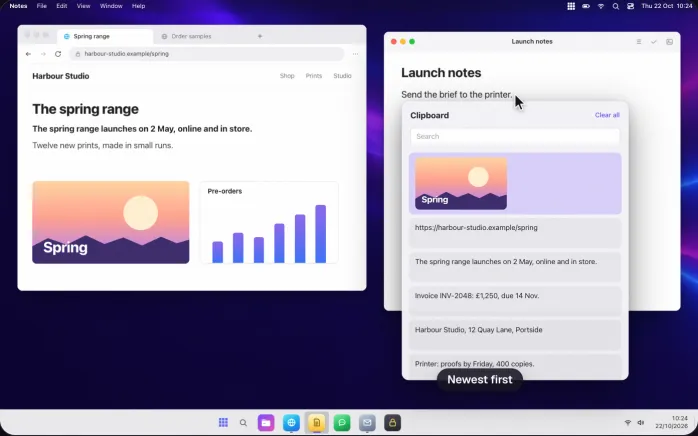
Paste without formatting on your Mac
Use ↓ and ↑ to pick a copy and Enter to paste it: the panel closes and the copy lands in the app you were in.
Text from the history is always pasted as plain text, without the fonts, colours and links of the page it came from.
Esc closes the panel without pasting.
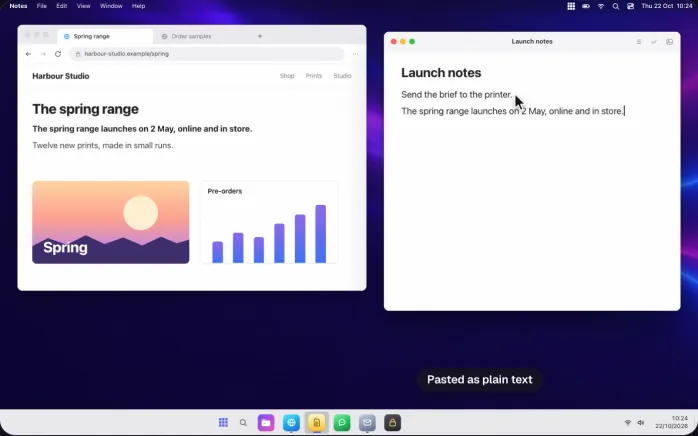
Paste any copy in one click
Prefer the mouse?
Click a card and it’s pasted where you were typing.
Whatever you paste moves back to the top of the list, like on Windows, so the copies you use most stay close at hand.
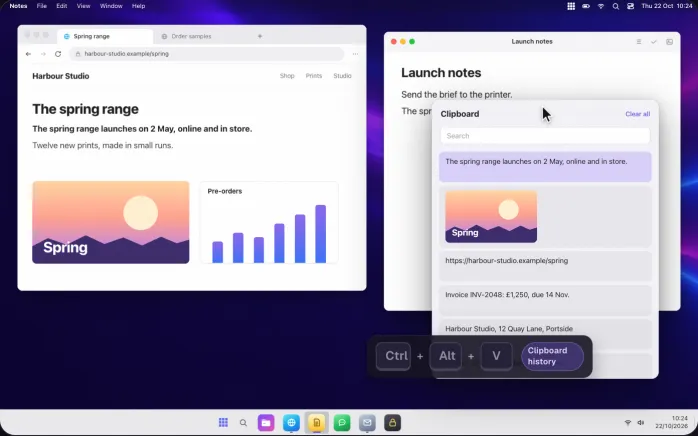
Search your copy and paste history
Copied an invoice number this morning?
Click Search and type a word: the list filters as you type, in the text you copied and in the names of the files.
Enter pastes the first match.
Upper or lower case makes no difference.
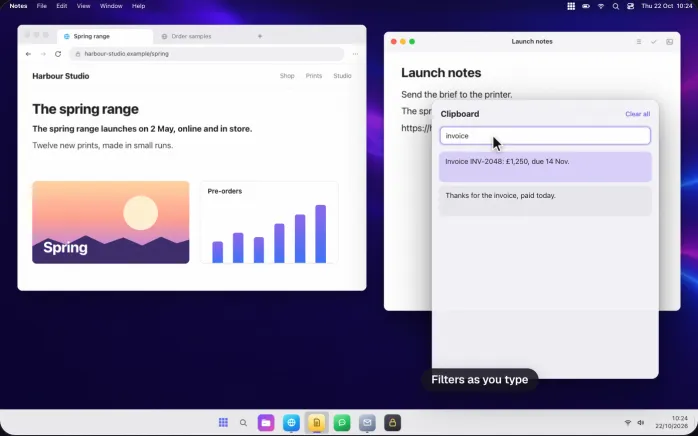
Pin the copies you paste every day
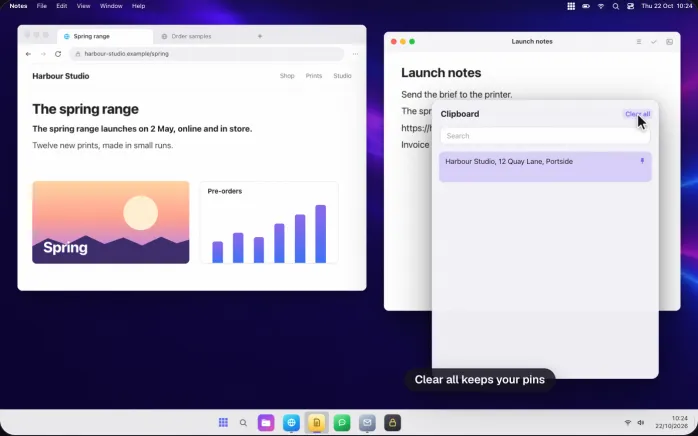
Hover a card and click its pin: an address, a reply you send often or a link you share stays at the top, for as long as you like.
Pins don’t count in your 100 copies, and Clear all empties the rest of the list but keeps them.
A bin on each card deletes just that one.
Copy a screenshot to the clipboard and keep it
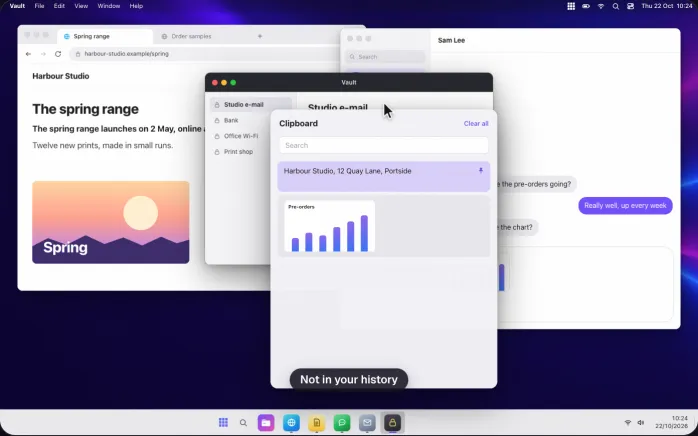
Snip with Win + ⇧ + S: WinPlug Snap copies your capture, and it waits in your history next to your text.
Paste it into a chat or a document now, or in an hour, even after copying other things.
Images up to 12 MB are kept; you can turn images off in Settings.
A private clipboard history: passwords stay out
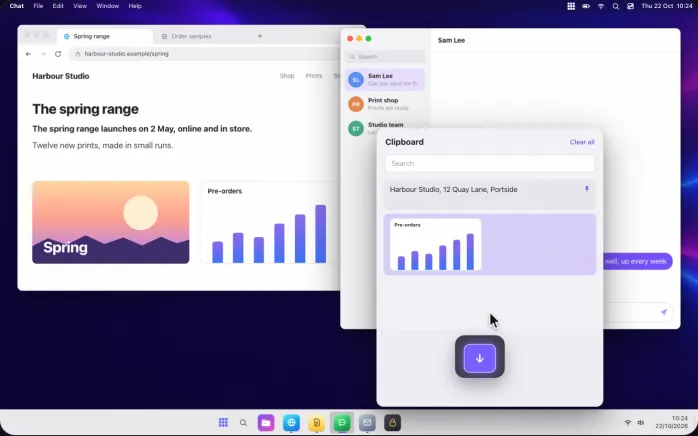
Password managers mark the passwords they copy as secret, and WinPlug never saves those copies.
Your history stays on this Mac, encrypted on disk, and nothing is sent anywhere: no account, no cloud.
It only records while WinPlug is on, and turning the history off deletes everything it kept.
Copy and paste files with the clipboard history
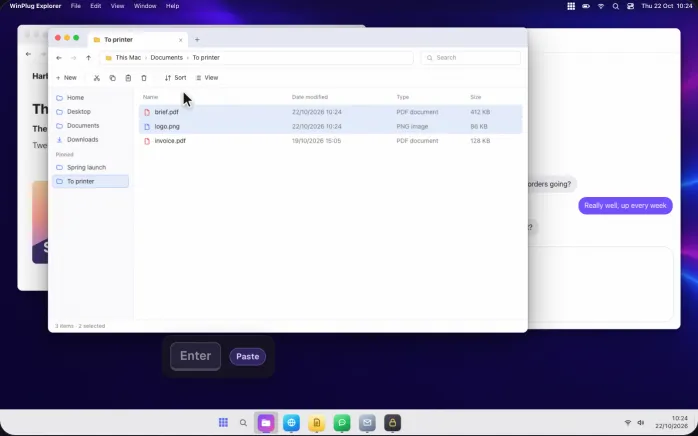
Copy files in WinPlug Explorer or in your Mac’s folders: they show up in the history as one card with their names.
Paste it into another folder and you get the real files, not just their names.
And also…
Delete one copy
Hover a card and click its bin: that copy is gone, the rest stays.
Up to 500 copies
Keep 10 to 500 copies, 100 by default. Pinned cards never count.
No duplicates
Copy the same thing twice and it simply moves back to the top.
Text, images, files
Long text shows its first 4 lines, images a thumbnail, files their names.
Your own shortcut
Ctrl + Alt + V by default: click it in Settings and press the keys you prefer.
Clear the history
Clear all in the panel, or Clear history… in Settings, keeps only your pins.
Off means deleted
Turn the history off and WinPlug deletes everything it kept, pins included.
Windows clipboard shortcuts on your Mac
- CtrlAltV
- Open or close the clipboard history
- ↓↑
- Pick a copy
- Enter
- Paste it, as plain text
- Esc
- Close without pasting
- CtrlC
- Copy (⌘C works too): it joins the history
- Win⇧S
- Snip an area: the capture joins the history
On a Mac keyboard, Ctrl is the Control key, Alt is Option and Win is Command. Win + V pastes as usual (it is ⌘V); the history is on Ctrl + Alt + V, and you can change that shortcut in Settings.
See it on a real Mac
No mock-up: WinPlug Clipboard filmed on a real MacBook, keys on screen. Jump to any feature from the list below.
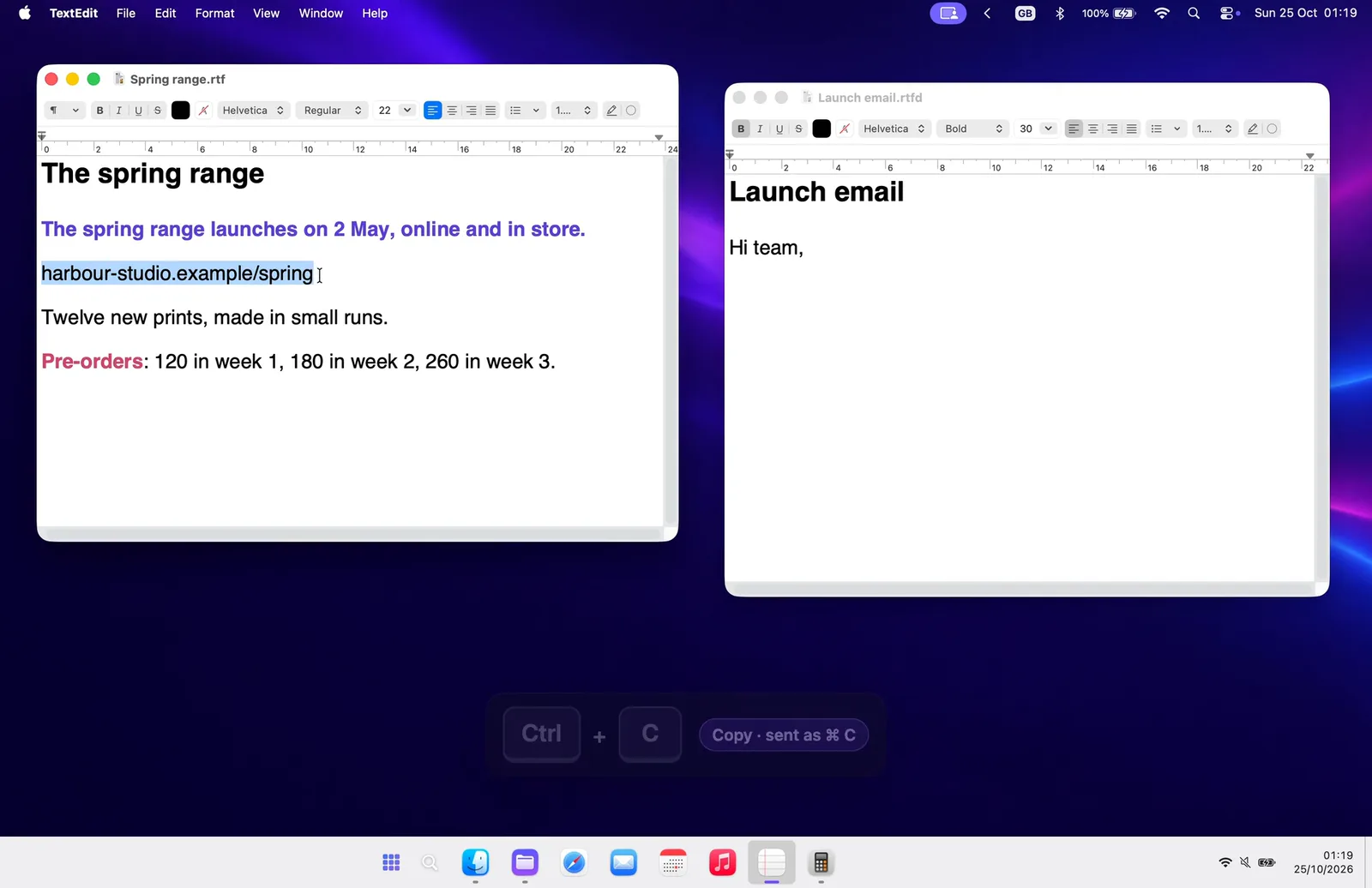
- Every copy, kept: Copy as usual. Ctrl + Alt + V opens your history, newest first.
- Or click a card: Click any card to paste it. It moves back to the top, like on Windows.
- Search your copies: Type a word in Search: the list filters. Enter pastes the first match.
- Pin what you reuse: Pin a copy you paste often: pinned cards stay on top.
- Screenshots join in: Snip with Win + ⇧ + S: the capture joins your history, ready to paste.
- Files too: Copy files in WinPlug Explorer, then paste them as real files elsewhere.
Features in the video
Clipboard history on Mac questions
Does a Mac have a clipboard history?
A Mac’s clipboard holds one copy at a time: each new copy replaces the last, and ⌘V pastes only that one. Recent versions of macOS can list past copies in Spotlight. WinPlug gives you a history like Win + V on Windows: Ctrl + Alt + V opens your last copies right where you work, with search, pins, images and files.
Where is the clipboard on a Mac?
It has no window of its own: in your Mac’s folders, Edit › Show Clipboard shows what you last copied. With WinPlug, Ctrl + Alt + V shows your whole history under the pointer, in any app.
How do I paste without formatting on a Mac?
In many apps, ⌥⇧⌘V pastes and matches the style of the text around it. With WinPlug, everything you paste from the clipboard history is plain text, without fonts, colours or links.
Is there Win + V on a Mac?
Not as such: on a Mac, Win (⌘) + V pastes. WinPlug puts the clipboard history on Ctrl + Alt + V, so ⌘V keeps working, and you can pick another shortcut in Settings.
Is my clipboard history private?
It stays on your Mac, encrypted on disk, and nothing is sent anywhere. Copies that password managers mark as secret are never saved. You can delete one copy, clear the history, or turn it off, which deletes everything it kept.
How many copies does it keep?
100 by default, from 10 to 500 in Settings, plus every copy you pin. They stay when you quit WinPlug or restart your Mac.
Can it keep images and screenshots?
Yes: images you copy and screenshots from WinPlug Snap are kept, up to 12 MB each, and pasted as images. You can turn images off in Settings.
Do I need another clipboard manager?
Not for the habit of Win + V: WinPlug Clipboard keeps your copies, searches them, pins them and pastes them, and it comes with the other WinPlug modules for one price.
One license, every habit
WinPlug Clipboard comes with 8 more modules: one license, $24 one-time at launch, for 2 Macs, with a free 14-day trial and no account.
- WinPlug TaskbarA real taskbar: every window one click away, previews on hover, a Start menu.
- WinPlug SnapWin + Shift + S to snip, an editor with arrows, blur and text, pinned captures.
- WinPlug KeyboardCtrl + C, Ctrl + V, Alt + F4, Home and End, on any keyboard.
- WinPlug SwitchAlt-Tab window by window, with live thumbnails, search and Peek.
- WinPlug ExplorerA file explorer that cuts and pastes, with an address bar and dual pane.
- WinPlug CaptureRecord the screen, a window or an area, then cut, style and export it in an editor.
- WinPlug LayoutWindows snapped to halves, quarters and thirds, with Win + arrows.
- WinPlug MouseThe wheel scrolls like Windows, the trackpad stays natural, Ctrl + wheel zooms.